

Admin Panel
The Admin (Superadmin) Panel is the global command center for the Ofis Square platform. While Community Managers handle day-to-day operations for a single building, the Admin Panel provides ultimate oversight across all locations, financial data, third-party integrations, and complex enterprise contract approvals.
Core Operations
- Name
Sales & CRM- Description
Manage the entire client lifecycle — from Leads and Onboarding to Contracts and Pending Migrations. This module tracks all active Clients and individual Members.
- Name
Inventory Management- Description
Comprehensive control over physical assets. Configure Buildings, Cabins, Meeting Rooms, and Common Areas across all locations.
- Name
Booking Oversight- Description
A centralized view of all workspace activity, including Day Pass entries and Meeting Room Bookings across the entire platform.
Administrative Control
- Name
Billing & Finance- Description
Global financial oversight. Generate and track Estimates, Invoices, and Payments, ensuring all revenue streams are synchronized with accounting software.
- Name
WiFi & Physical Access- Description
Deep integration management for platform infrastructure. Provision WiFi credentials and manage floor Access through dedicated Matrix hardware integrations.
- Name
Operations & Support- Description
The ultimate management layer for Staff Users, Community Events, and the global Support Ticket system. Manage Notification Templates and audit system health via Activity & API Logs.
Inventory Management (Physical Assets)
The Admin Panel provides complete hierarchical control over the physical workspace, organized logically from Buildings down to individual Cabins, Meeting Rooms, and Common Areas.
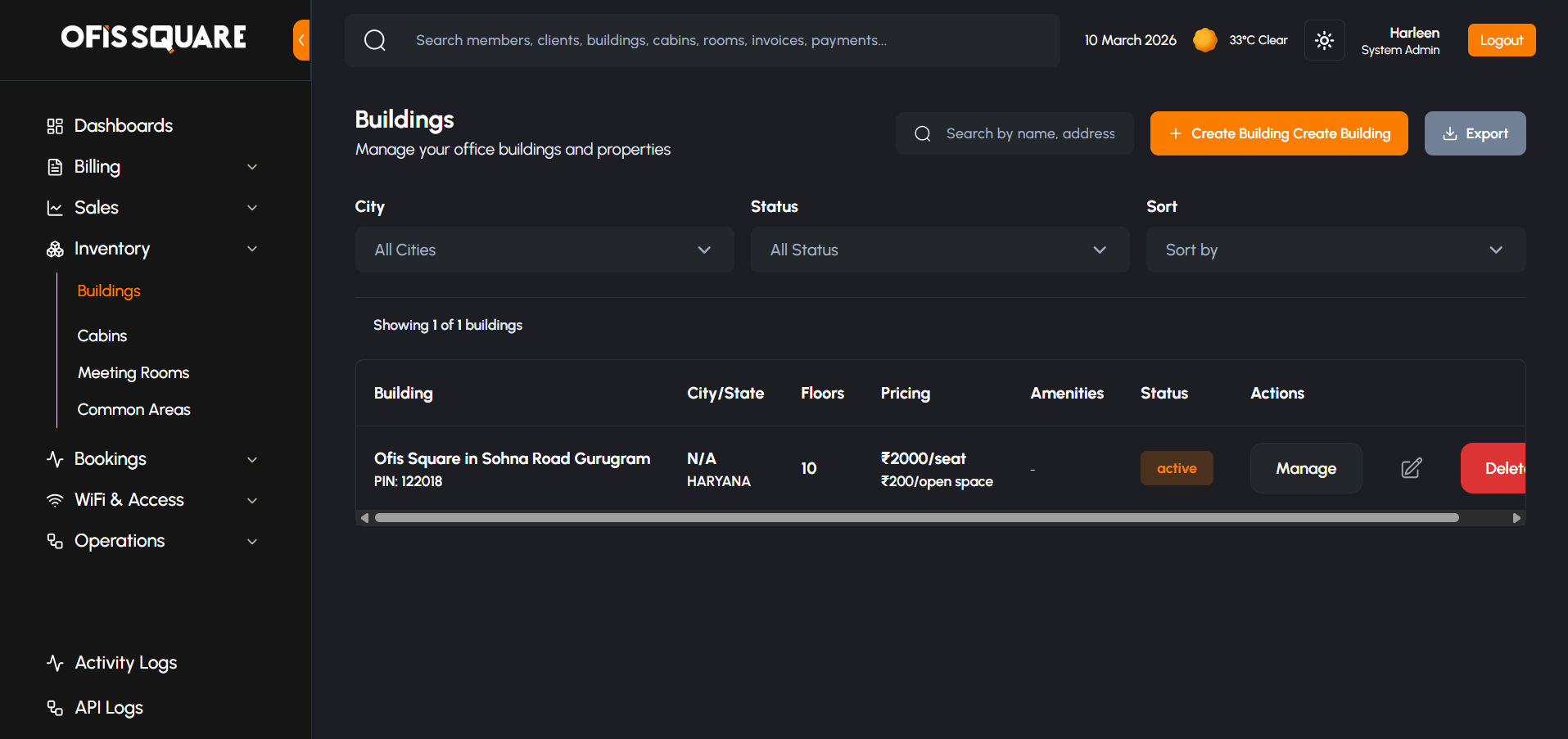
1. Buildings
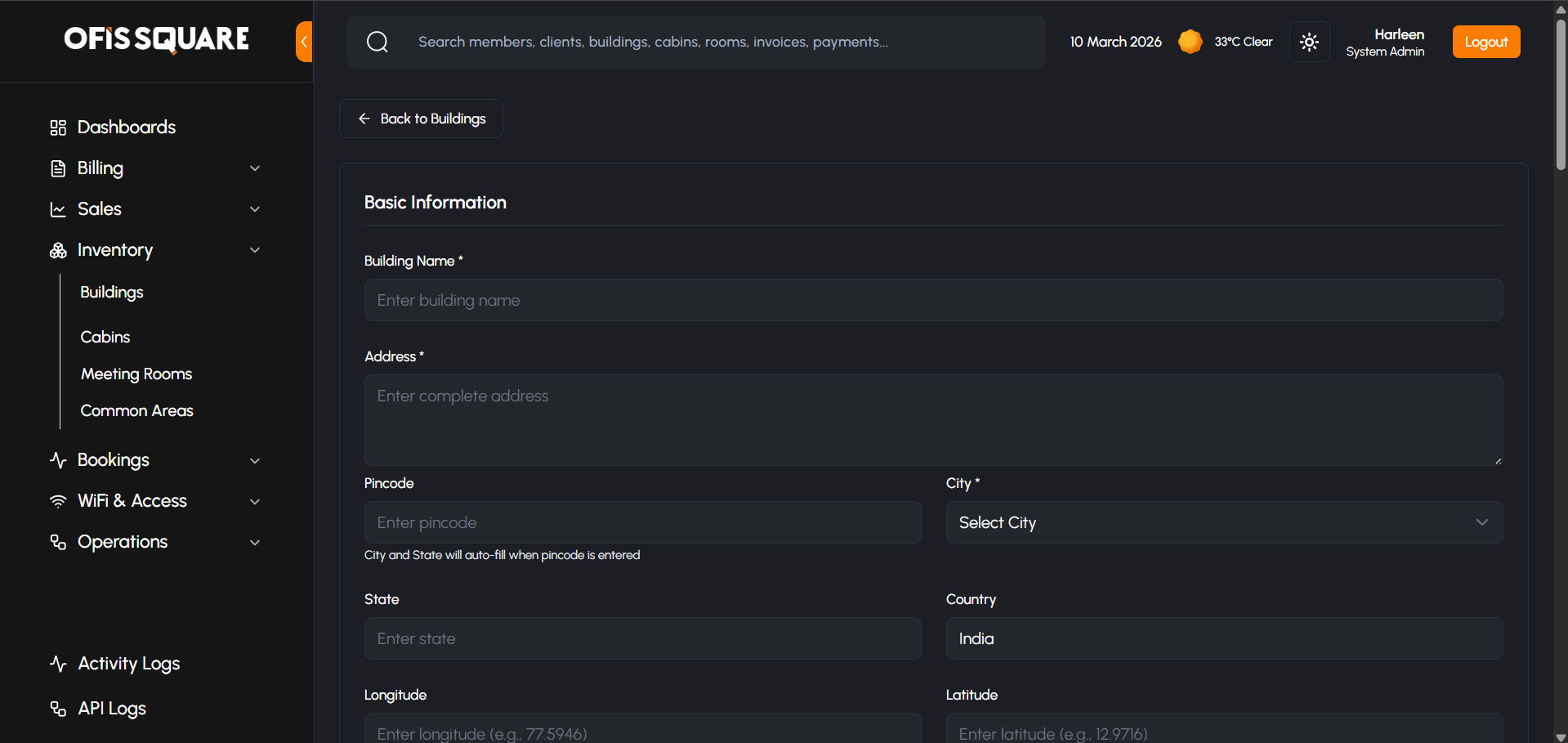
The foundational entity for all other assets. Building profiles dictate the global rules for the location:
- Location & Details: Full address, geo-coordinates (longitude/latitude for app mapping), total floors, and dynamic business map links.
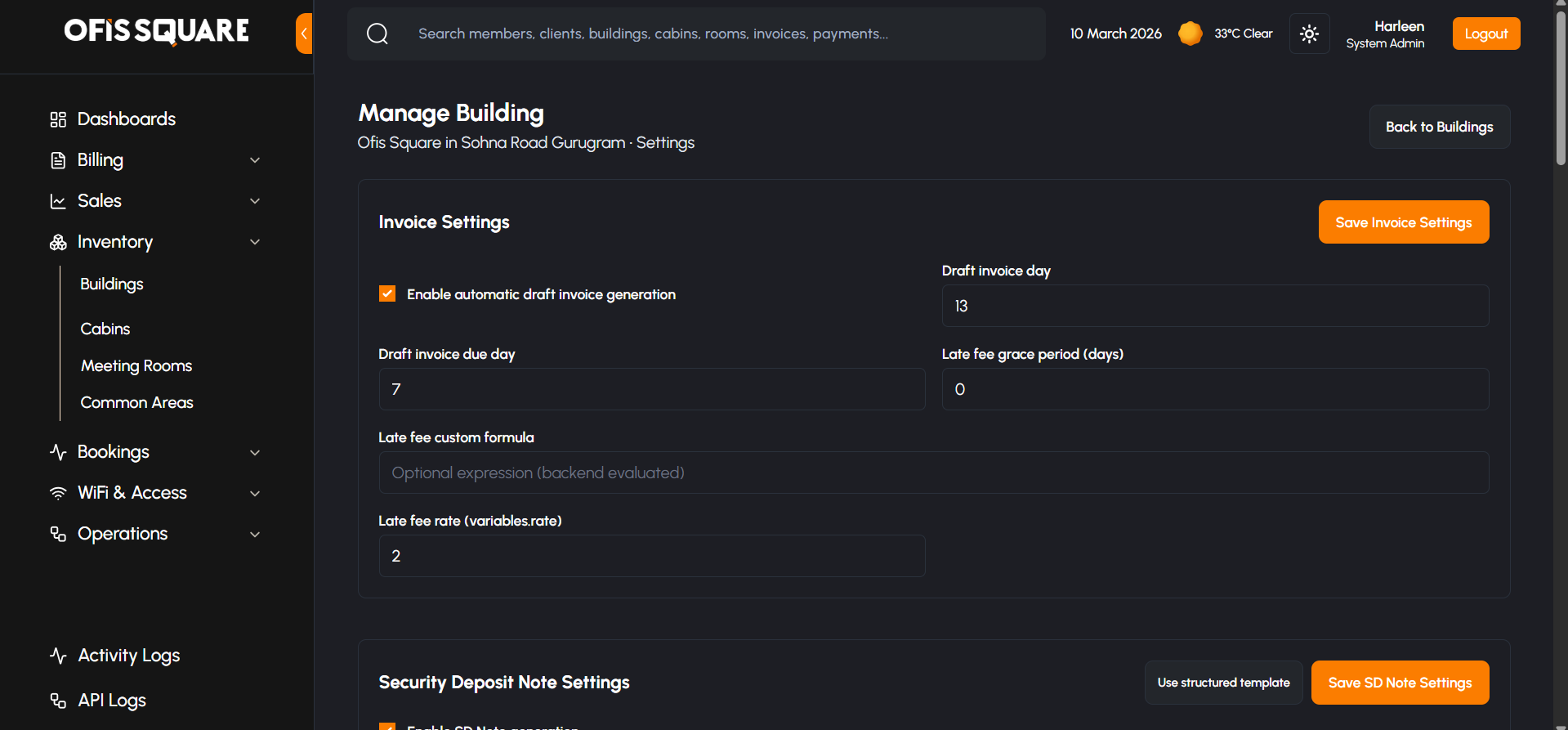
- Global Pricing & Rules:
- Base Per Seat and Open Space default pricing.
- Base Credit Value exchange rates.
- Granular billing configurations: Draft Invoice Generation Cycles, Due Days, and Security Deposit Thresholds.
- Global Community Discount Cap (e.g., maximum 20% discount allowed by community managers).
- Amenities & Media: Organized photo galleries categorized by space type (Cabins, Meeting Rooms, Cafeteria) and building-wide amenities.
2. Cabins (Private Offices)
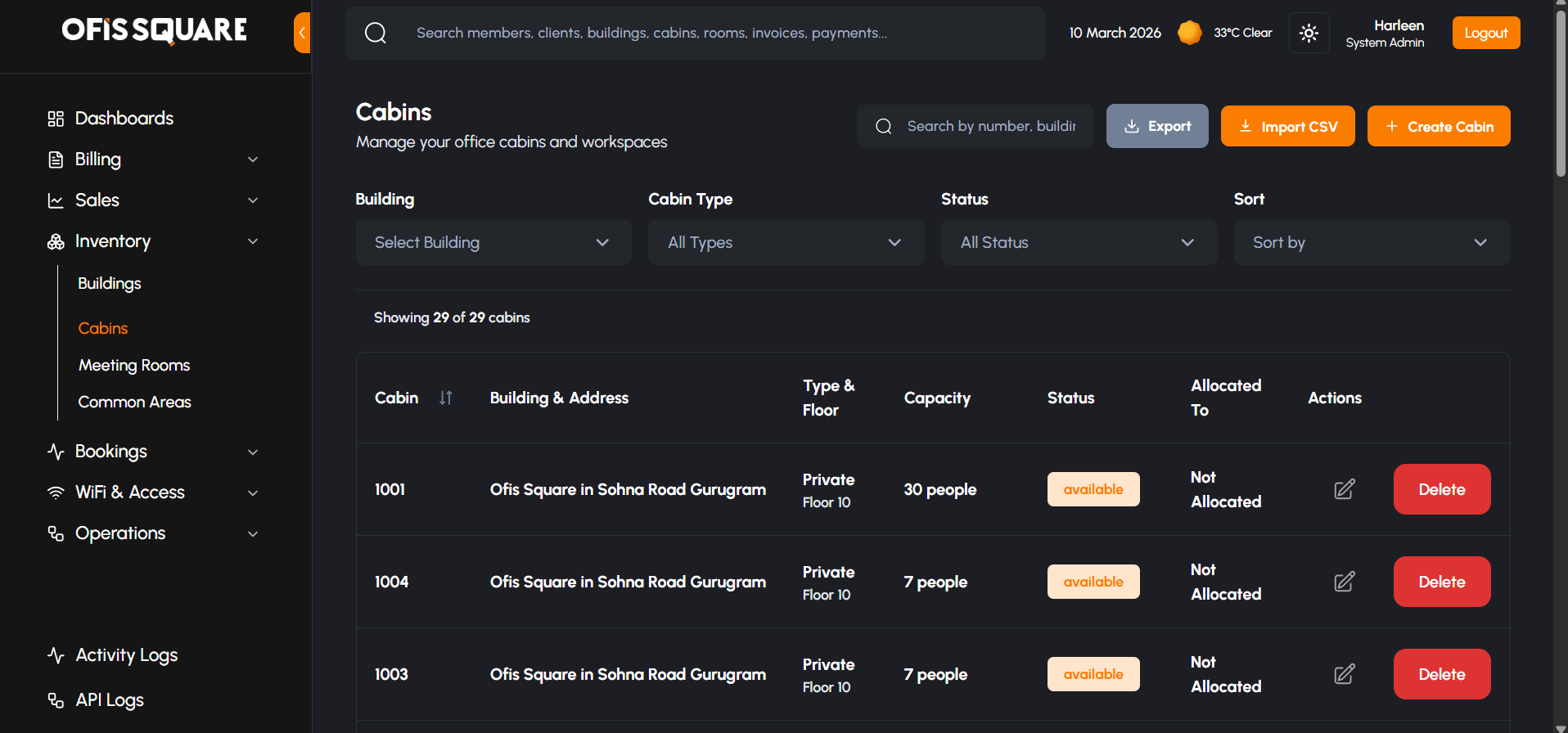
Cabins represent private enclosed spaces assigned to enterprise clients via contracts.
- Configuration: Specific Cabin Number, Floor, Capacity (number of desks), Category (e.g., Premium, Standard), and Size (Sq Ft).
- Status Tracking: Real-time status reflecting operational availability: Available, Blocked (pending contract), Occupied (active contract), or Maintenance.
- Hardware Integration: Cabins are directly linked to specific Matrix Devices (access control doors) to seamlessly provision access for the assigned client during contract activation.
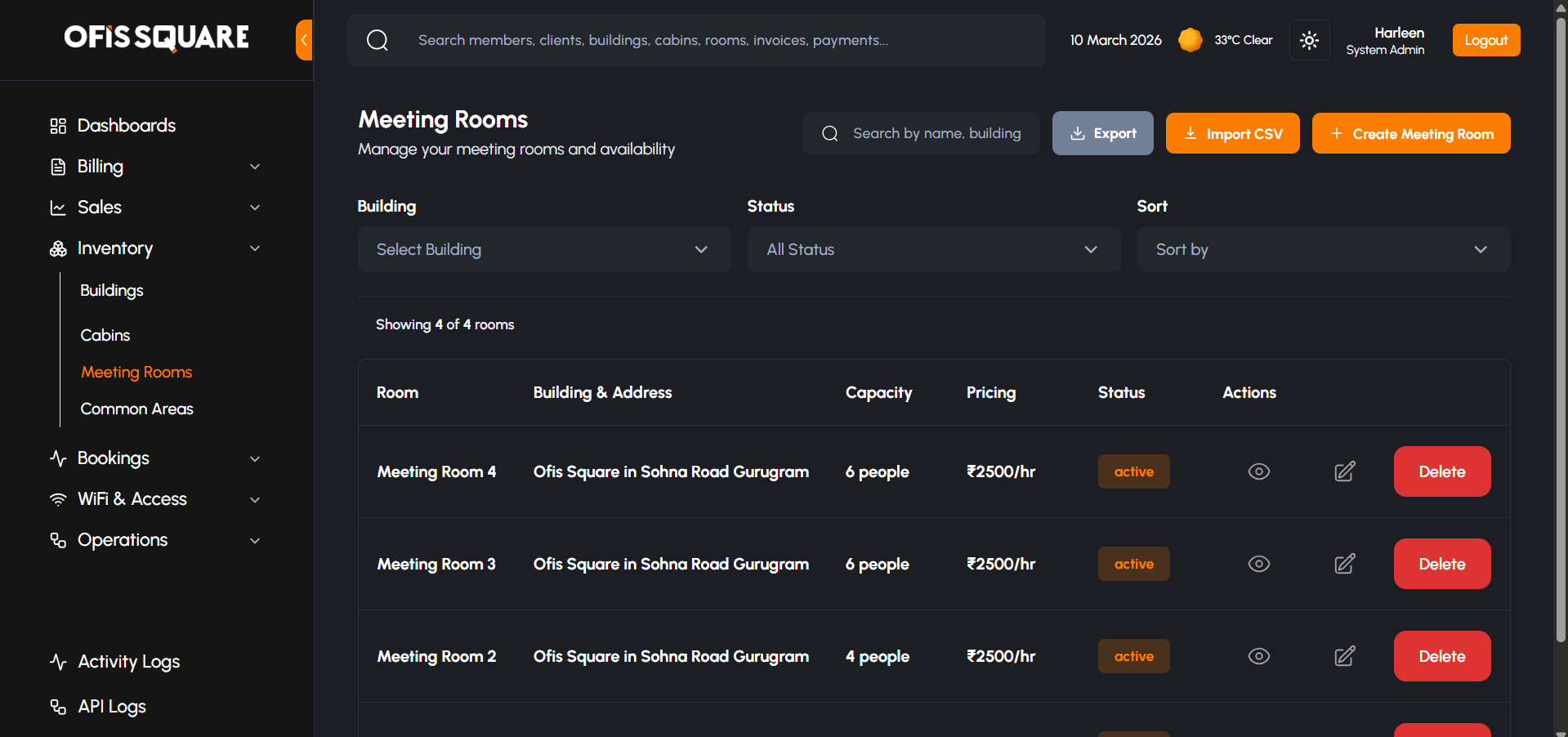
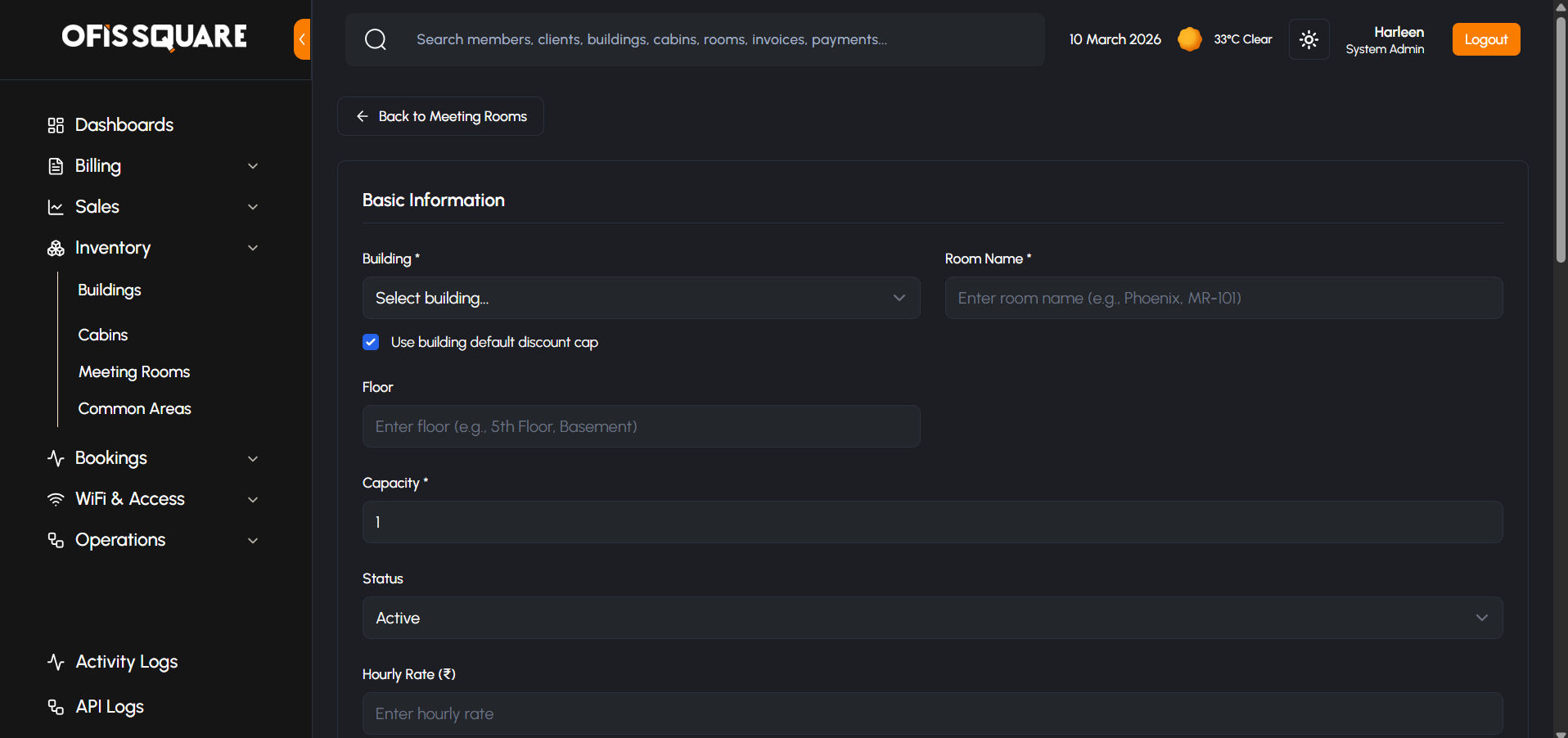
3. Meeting Rooms (On-Demand Spaces)
Meeting Rooms are highly configurable shared assets that generate internal hourly revenue or consume member credits.
- Capacity & Pricing: Defines seat capacity and fixed Hourly Rate. Admins can choose to enforce the Building's global discount cap or specify a custom, room-level discount limit.
- Availability Matrix:
- Configurable Open/Close Times and specific Available Days (e.g., Mon-Fri only).
- Fine-grained Booking Duration limits (Minimum and Maximum minutes allowed per session).
- 15-minute or hourly Time Slots explicitly generated and toggled for availability.
- Hardware Integration: Linked to Matrix Devices allowing access to explicitly authorized booking participants.
4. Common Areas
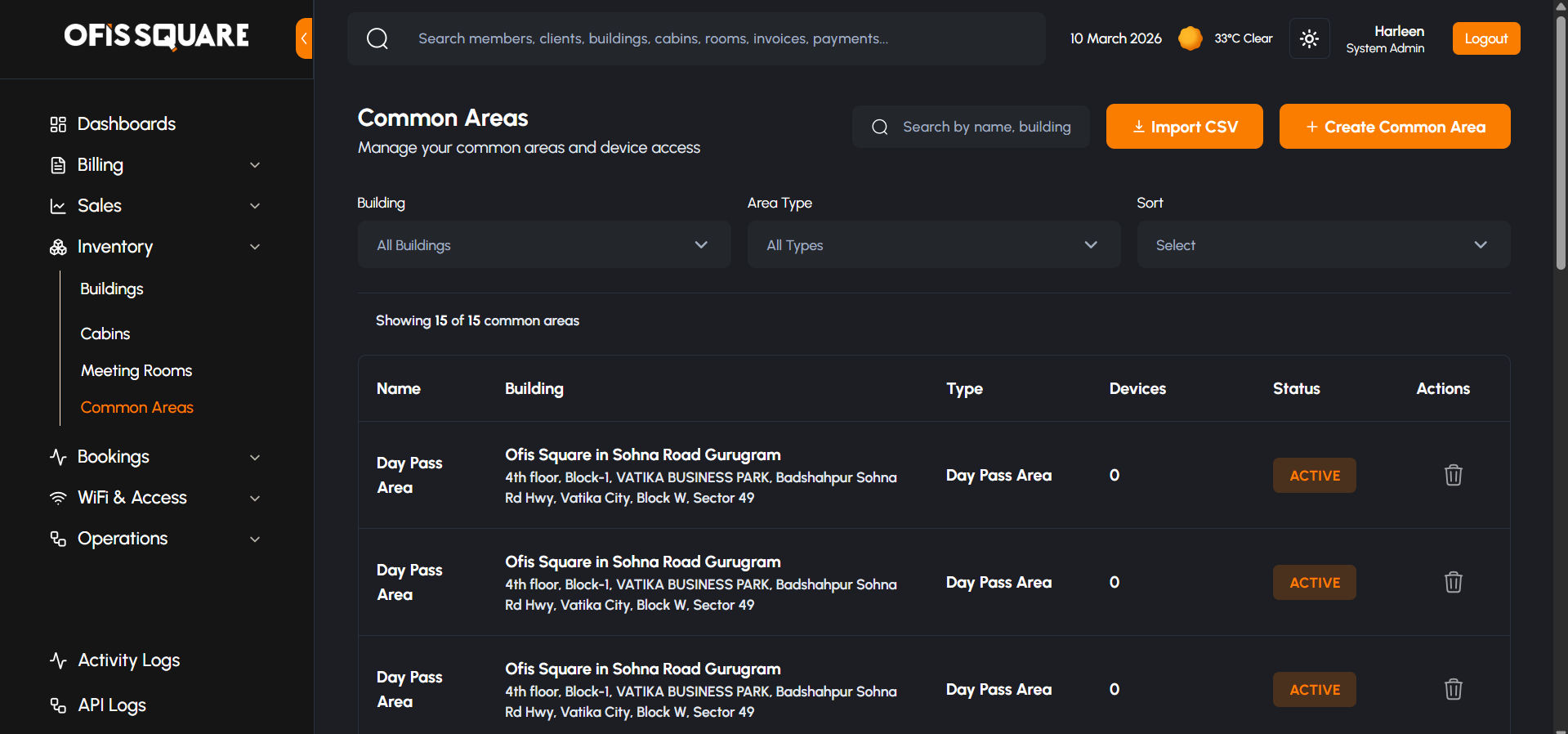
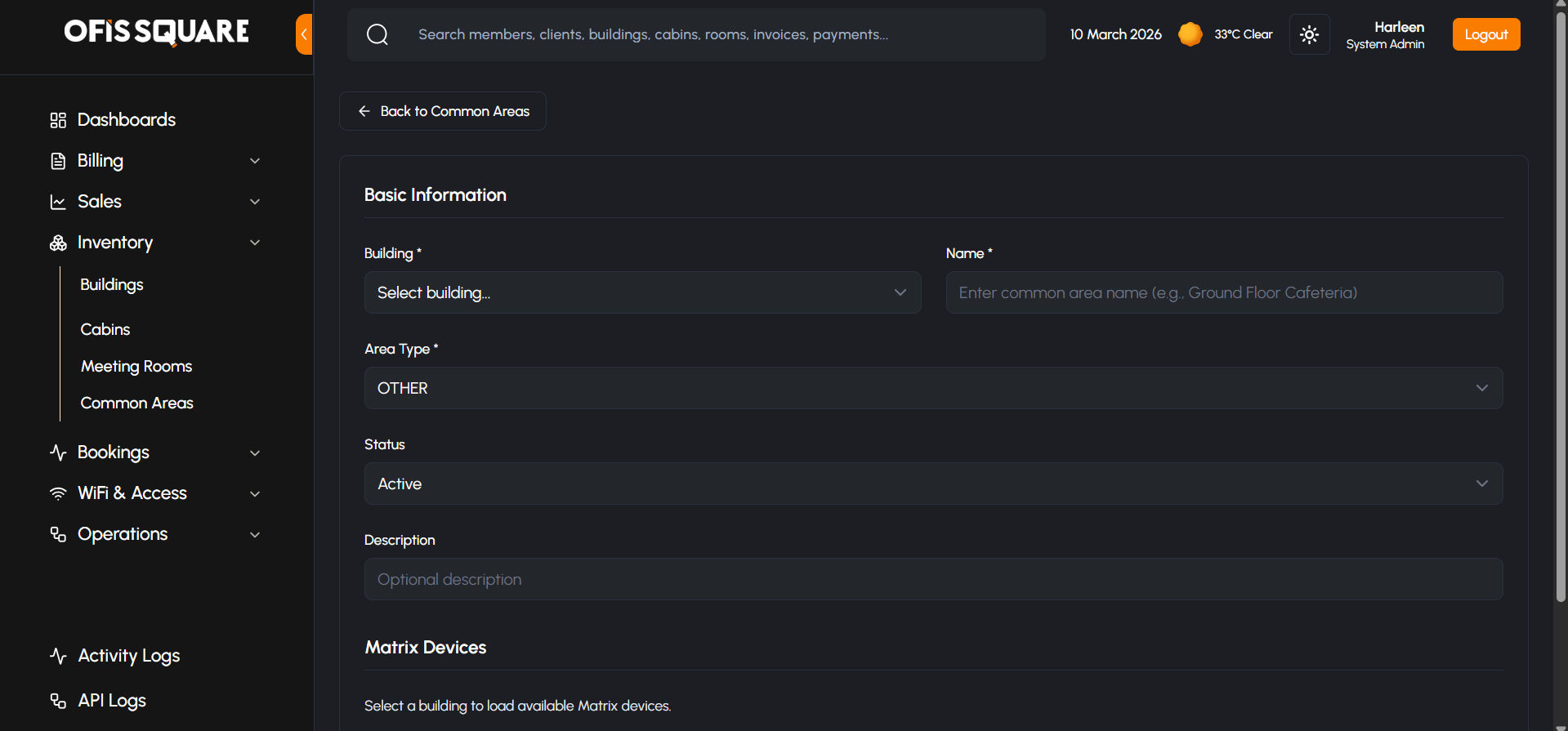
Shared spaces mapped primarily for access control, physical zoning, and visitor tracking.
- Zoning: Defined by programmatic types: CAFETERIA, CORRIDOR, LOBBY, PANTRY, LOUNGE, or OTHER.
- Hardware Integration: Links to open-floor Matrix Devices (e.g., Turnstiles, Cafeteria Flap Barriers) ensuring active members can navigate shared spaces securely.
Inventory CSV Import Workflows
To facilitate rapid onboarding of large locations, the Admin Panel features a sophisticated, fail-safe CSV import workflow for Cabins, Meeting Rooms, and Common Areas.
The import process utilizes a strict "Dry-Run" validation system before any data is actually written to the database:
- Template Download: Administrators begin by downloading a strictly formatted Sample CSV specific to the asset type (e.g.,
cabins_import_sample.csv), guaranteeing correct column headers. - Data Population: The CSV is populated locally. Administrators must ensure relational data (like Building Name) exactly matches existing system records to pass later validation.
- Upload & Dry-Run Preview:
- Upon file upload, the system automatically triggers a background Dry-Run analysis.
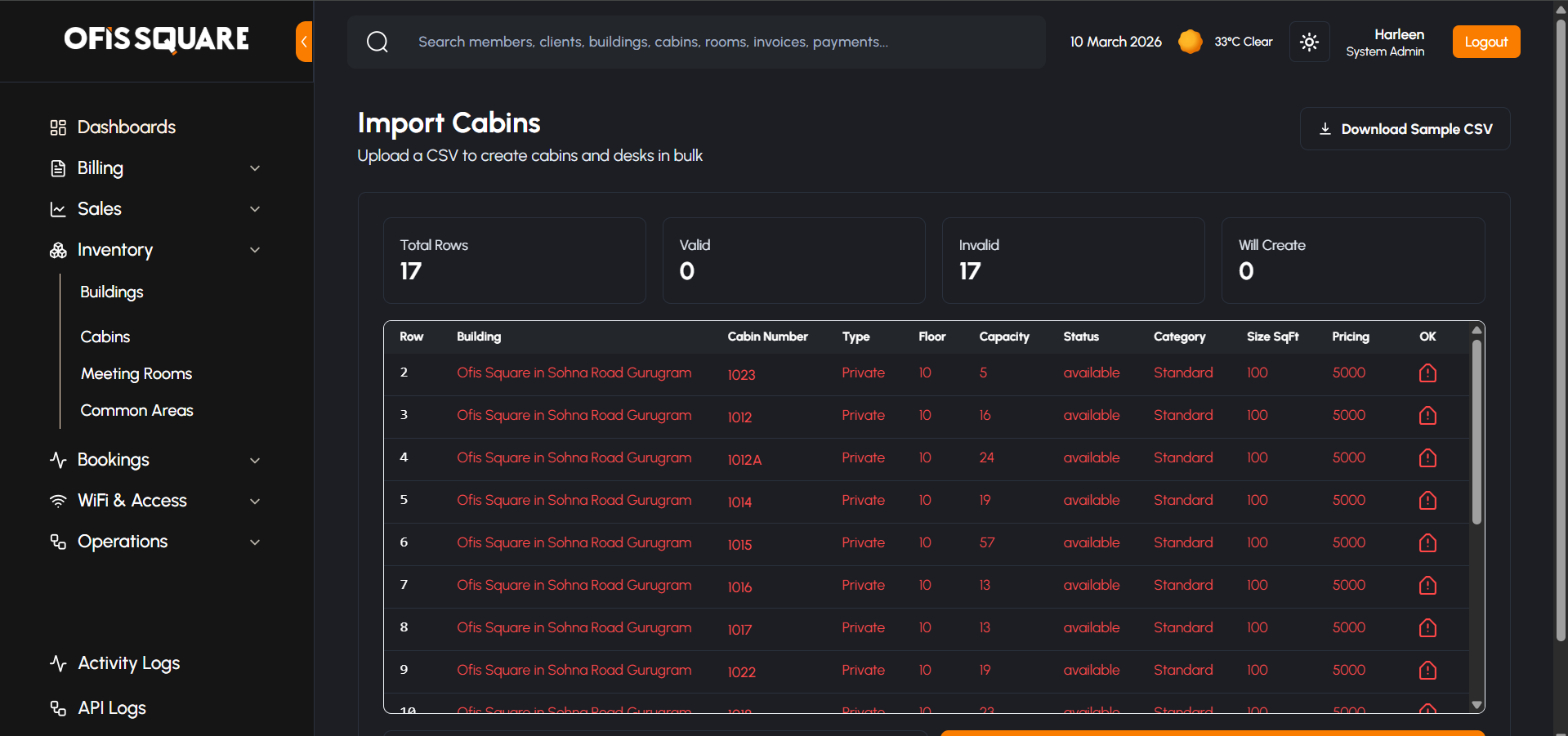
- A detailed Preview Table is generated on-screen, providing a high-level summary dashboard (showing Total Rows, Valid Rows, Invalid Rows, and Projected Creations).
- Row-Level Validation & Error Correction:
- Every single parsed row is displayed in the Preview Table.
- Successful rows are marked with a green indicator.
- Failed rows present a Danger Icon. Hovering over this icon generates a centered, detailed Error Tooltip Overlay, explicitly listing every validation failure for that specific row (e.g., "Missing Capacity", "Building Name not found"), preventing blind upload failures.
- Final Execution: Once errors are corrected and the preview displays sufficient valid rows, the administrator authorizes the final Import action. The system skips invalid rows and successfully creates all validated inventory, accompanied by a success confirmation toast.
Master Inventory Record
The master inventory record for all Ofis Square locations is maintained in the following Google Sheet:
Client Onboarding & Commercials Flow
For larger enterprise clients (e.g., those taking a Private Cabin or bulk desks), the onboarding process is highly structured. It involves capturing precise billing data, dynamic document collection, and a strict multi-tier approval process.
1. Document Entities Configuration
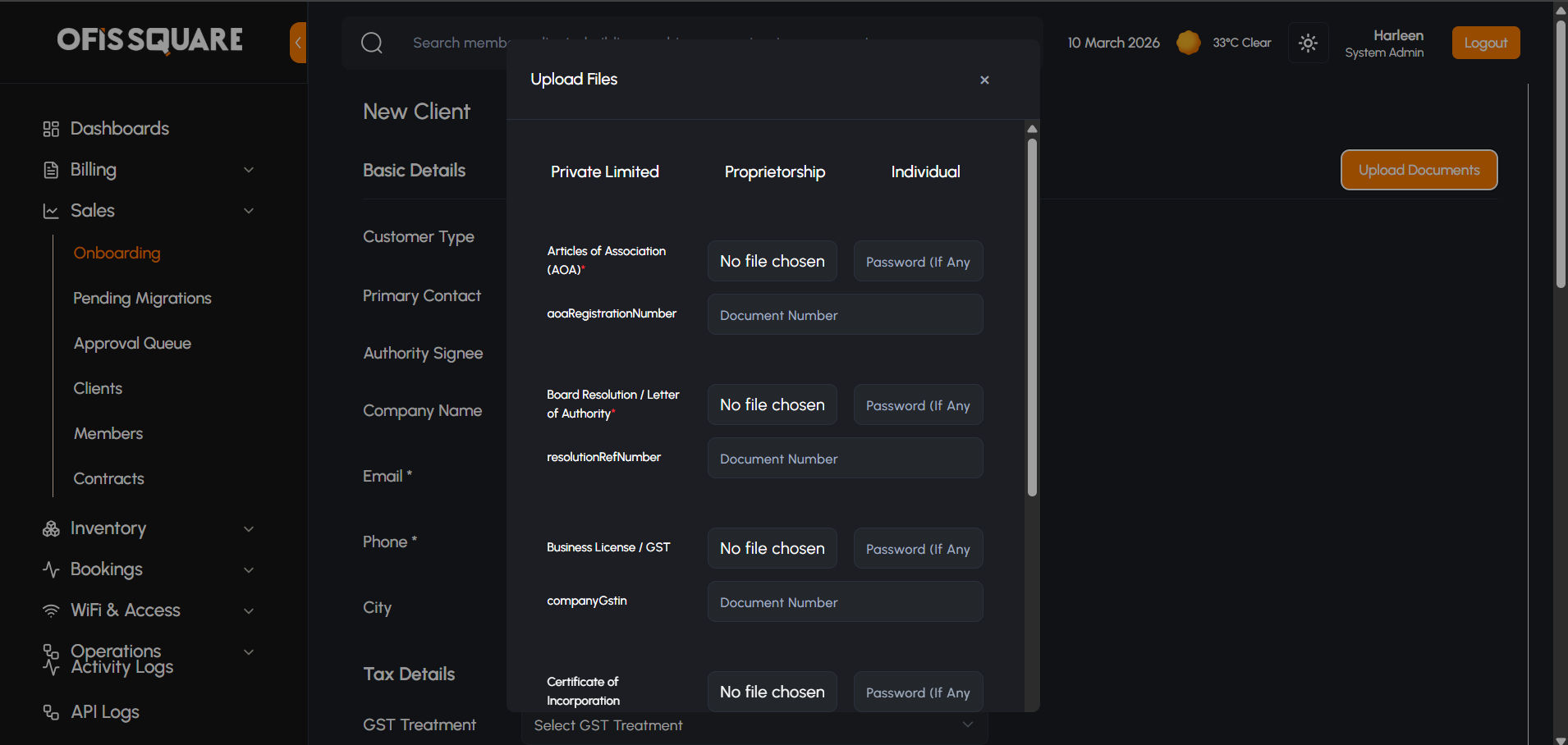
Before a client can even upload documents, the platform must know what to ask for. This is controlled entirely by the Admin through the Document Entities page.
- Dynamic Requirements: Admins can create new document requirements on the fly.
- Field Customizations: For every document needed, the admin can define the exact Name, the internal Field Name, and a Description.
- Required vs. Optional: Admins can toggle whether a document is strictly Required or purely Optional. When the client reaches the KYC/Document upload stage, the platform automatically respects these toggles — preventing the client from proceeding if required documents are missing, but allowing them to skip optional ones.
2. Client Profile Creation
When a Sales representative engages a qualified lead, the first step in the system is formalized Client Creation:
- Core Details Form: The representative fills in the Client definition form.
- Addresses: Crucially, this requires inputting both the Billing Address and the Shipping Address.
- Zoho Books Synchronization: Upon saving the Client profile, the system automatically synchronizes this data with Zoho Books, creating a corresponding Customer record. This ensures that all future financial transactions are linked to a verified accounting entity.
- Notification Trigger: Once the profile is created, a notification is sent to the Sales Senior to prepare for the Commercials phase.
.png)
3. The Commercials Proposal
Once the Client profile is established, the representative must formally submit the financial terms of the deal via the Commercials Form. This is typically handled by a Sales Junior role.
Exhaustive Field List
The form captures a comprehensive set of operational and financial data:
- Client & Building: Linking the contract to a specific entity and location.
- Space Details: Capacity (Seats) and specific Cabin selection (if applicable).
- Financials: Monthly Subscription (₹) and Security Deposit (Agreed Amount).
- Contract Dates: Start Date, End Date, and separate Billing Dates (Start/End) for invoicing flexibility.
- Operational Terms:
- Lock-in Period (in months) and Notice Period (in days).
- Parking Spaces: Number of 2-wheeler and 4-wheeler slots with their respective monthly fees.
- Escalation: Percentage rate and frequency (e.g., 5% every 12 months).
- Renewal: Auto-renewal toggle and renewal term length.
- Amenities & Fees: Printer/MR Credits, Legal Expenses, and Cleaning/Restoration Fees.
- Business Hours: Defining the "Fully Serviced" operational window (e.g., 09:00 - 18:00, Mon-Fri).
- Tax Profile: Verified GST Treatment, GST Number, and Place of Supply.
.png)
.png)
4. Security Deposit Mechanism
The Security Deposit (SD) is handled as a prioritized prerequisite in the onboarding workflow:
- Record Creation: When the commercials are saved, the system first creates a dedicated Security Deposit record in the financial ledger.
- Linking: The unique ID of this SD record is then permanently linked to the Commercials/Contract.
- Purpose: This separation allows the community team to track the "Agreed vs. Paid" status of the deposit independently from the monthly rent invoices.
- Notes: Representatives can add specific notes (e.g., "Equivalent to 2 months of monthly subscription") for clarity during the financial audit.
5. The Multi-Tier Approval Workflow
Because these enterprise contracts define significant revenue, they cannot be activated instantly. They follow a strict approval routing sequence:
- Submission & Review Notification: The Sales Junior submits the Commercials Form.
- Notification Trigger: A notification is instantly sent to the Sales Senior, alerting them that a new commercial proposal requires review.
- Sales Senior Review: The Sales Senior logs in, navigates to their Approval Queue, and reviews the financials, dates, and terms.
- Handling Rejections:
- If the terms are incorrect or the discount is too steep, the Sales Senior clicks Reject and provides a reason.
- Notification Trigger: A rejection notification is sent back to the initiator (Sales Junior), prompting them to open the form, edit the Commercials based on the feedback, and resubmit it to the Sales Senior.
- Final Sales Approval & Legal Handoff:
- Once the Sales Senior is satisfied with the terms (or the resubmitted terms), they click Approve.
- Notification Trigger: The Commercials are officially locked, and an automated notification is instantly dispatched to the Legal Team. The Legal Team is now prompted to generate the final binding contract based on these approved digital terms.
Contract Management & Execution Flow
Once the Commercials are approved, the platform transitions from financial negotiation to legal execution and physical provisioning.
1. Legal Processing & Stamp Paper
- Document Preparation: The Legal Team prepares the formal contract on the required stamp paper.
- Digital Upload: Legal uploads the scanned, ready-to-sign stamp paper directly to the contract profile.
- Notification Trigger: An automated alert is sent to Senior Management, notifying them that the legal documents are ready for administrative review.
2. Senior Management Administrative Actions
Before the contract is sent to the client, Senior Management performs three essential "gatekeeper" actions:
- Record Security Deposit: Verify and record the receipt of the Security Deposit.
- Zoho Books Relevance: The Security Deposit is recorded as a specialized transaction in the ledger, ensuring financial parity with Zoho Books.
- Cabin Blocking: If the contract involves a private office, the assigned cabin is officially "blocked" in the inventory to prevent double-booking.
- Admin Approval: Senior Management grants the final internal "Admin Approval."
- Notification Trigger: This approval triggers the automated Zoho Sign workflow and notifies the Sales and Legal teams that the contract has been dispatched to the client.
.png)
.png)
.png)
.png)
3. Automated Signing & Activation
- Zoho Sign Automation: The system dispatches the contract to the Client via Zoho Sign.
- Client Execution: The Client receives the link and digitally signs the document.
- Notification Trigger: Once the client signs, a notification is instantly sent to the Community Management and Senior Management teams.
- Contract Activation: The contract status automatically flips to Active.
- Initial Billing & Zoho Integration: A Pro-Forma Invoice is instantly generated within the platform and synchronized to Zoho Books. The cabin is then officially allocated to the client's account.
4. Final Financial Verification
Senior Management performs a final oversight check on the newly active account:
- Pro-Forma Review: Senior Management reviews the generated Pro-Forma Invoice for accuracy.
- Record Payment: Once confirmed, they record the payment against the invoice.
- Zoho Books Sync: This payment is pushed to Zoho Books, marking the invoice as settled.
- Notification Trigger: The localized receipt and finalized invoice are automatically emailed to the Client.
- Final Approval: Senior Management grants the "Final Approval."
- Notification Trigger: An alert is sent to the Operations teams to confirm that infrastructure provisioning is now authorized.
5. Infrastructure & Access Provisioning
The Final Approval triggers the automatic provisioning of technical services:
- WiFi Access: Credentials are automatically generated for the client's team, with durations synced to the contract terms.
- Matrix Access Control: Permissions are pushed to the Matrix COSEC system.
- Notification Trigger: The Client Admin receives an automated "Welcome & Access" email containing their WiFi credentials and instructions for managing their team's access.
- Card Assignment Workflow:
- The Community Team prepares and assigns physical RFID access cards.
- The Client Admin receives a notification that their cards are ready for pickup/assignment.
- The Client Admin assigns these cards to their members via the Member Web Panel.
.png)
.png)
Global Invoicing & Payment Collection
While the platform automates monthly recurring billing, Administrators have full manual control to handle corrections, ad-hoc services, and complex payment reconciliations.
1. Manual Invoice Generation
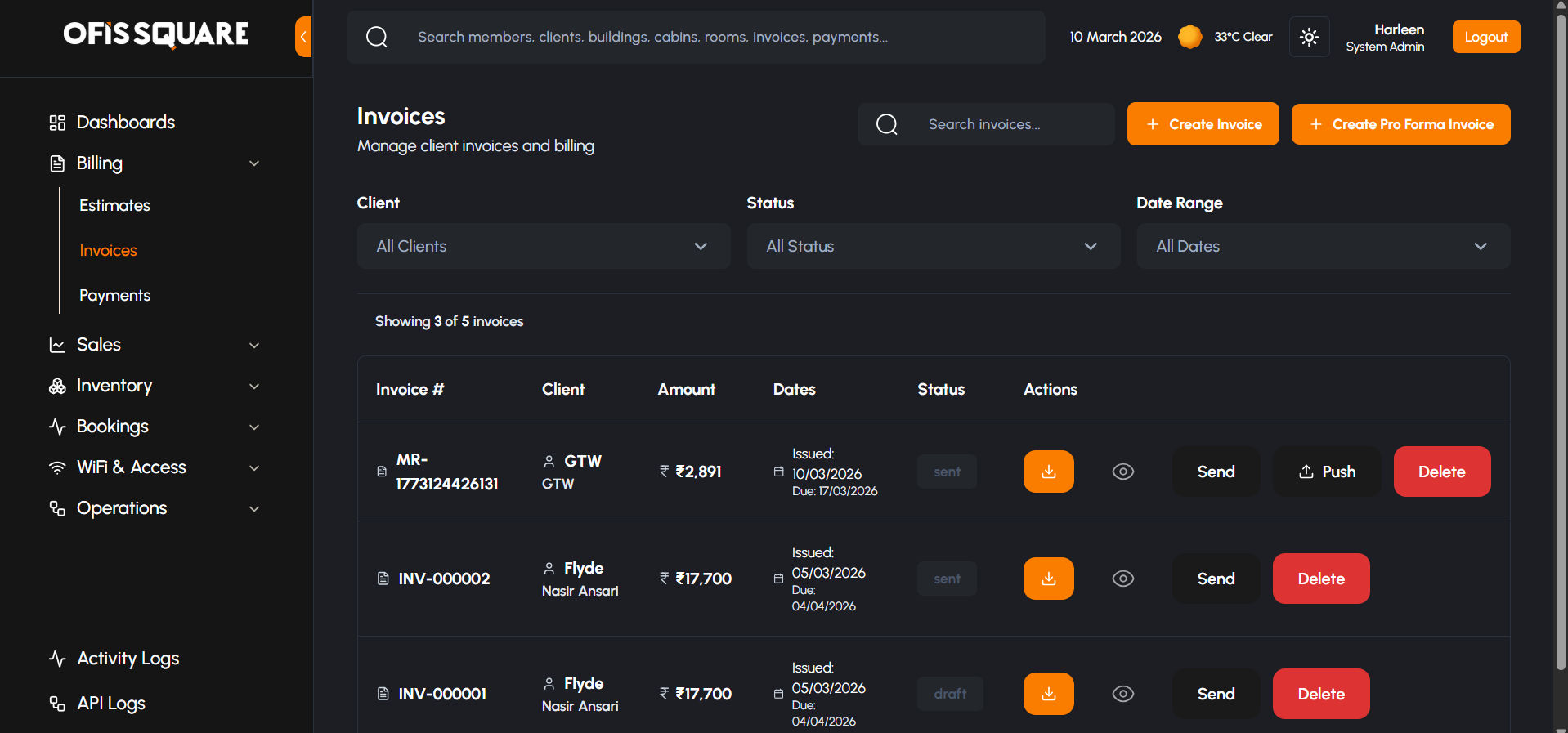
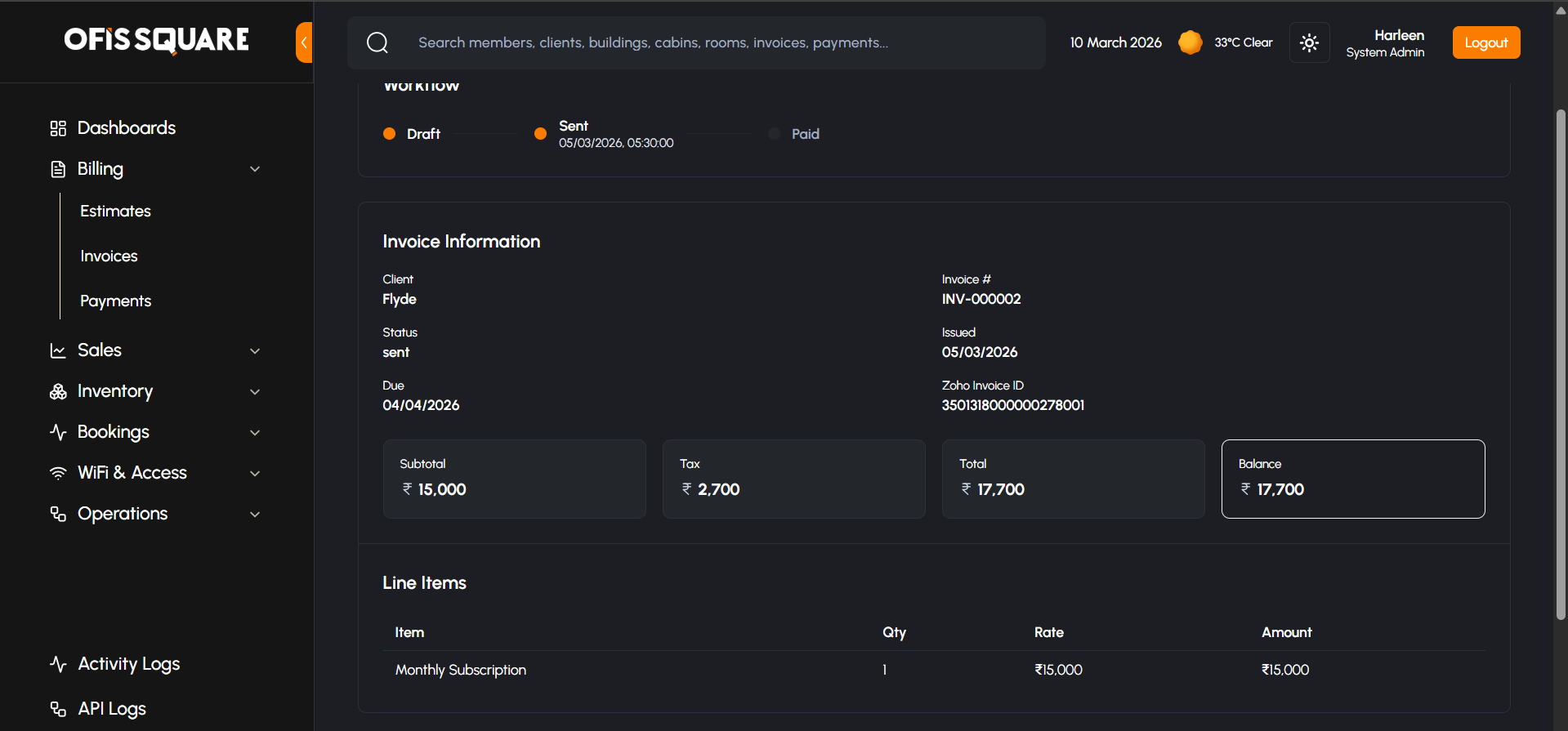
The Invoices module allows for the creation of on-demand bills for services like one-time events, damage repairs, or ad-hoc credits.
- Synchronized Entities: When creating an invoice, selecting a Client automatically pulls their primary Building, Tax Registration (GST), and Place of Supply from their profile or linked contract.
- Line Item Flexibility: Admins can add multiple service items, each with custom descriptions, quantities, and unit prices.
- Draft & Sync: Invoices are born as Drafts. Once the admin is satisfied, the Send (Zoho Email) action pushes the record to Zoho Books, generates a formal invoice number, and emails the digital copy to the client.
2. Payment Collection & Zoho Reconciliation
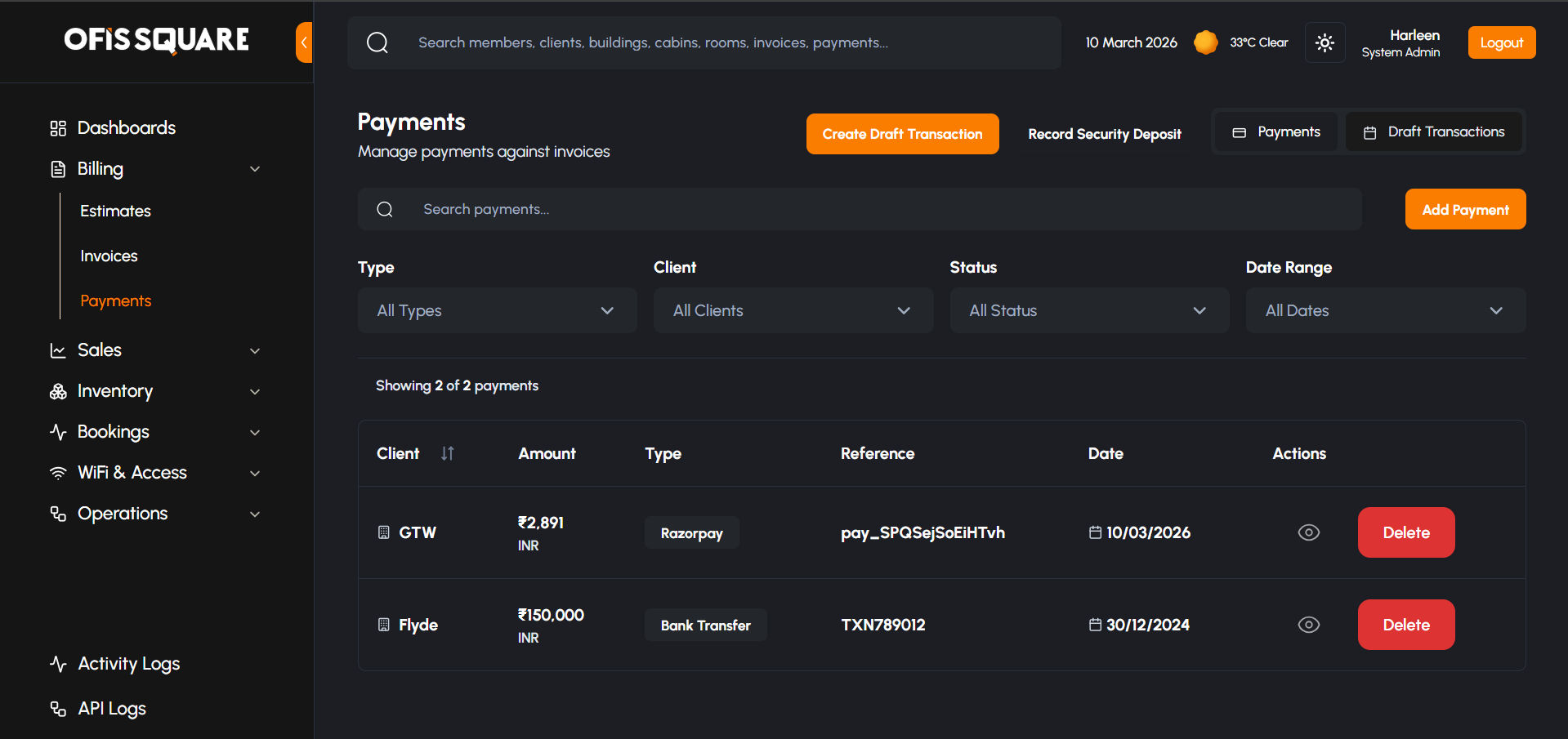
The Payments module acts as the financial bridge between the bank and the ledger. It handles the nuances of Indian tax compliance and client overpayments.
TDS Recording (Tax Deducted at Source)
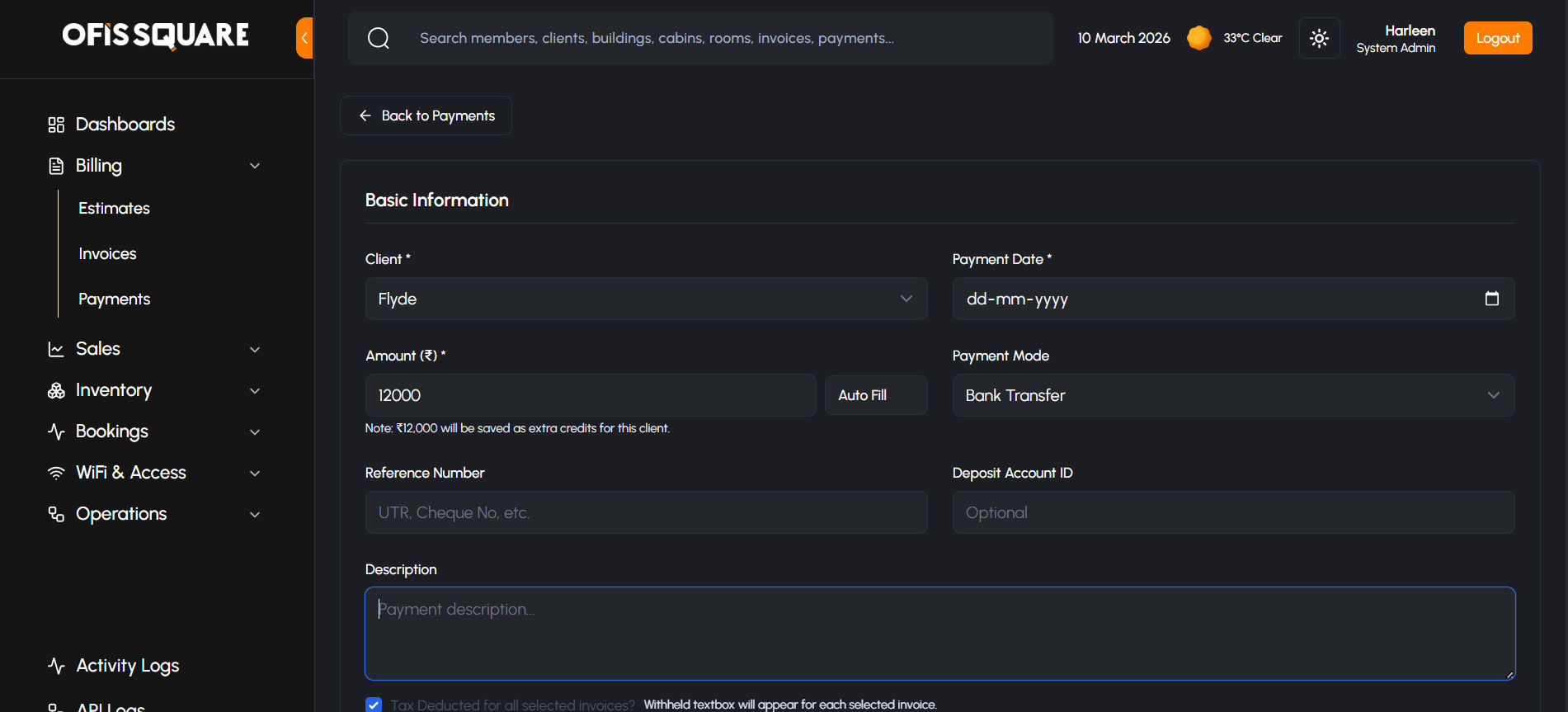
When recording a payment from a client, the system accounts for the tax they may have withheld:
- Cash Received: The actual amount that hit the building's bank account.
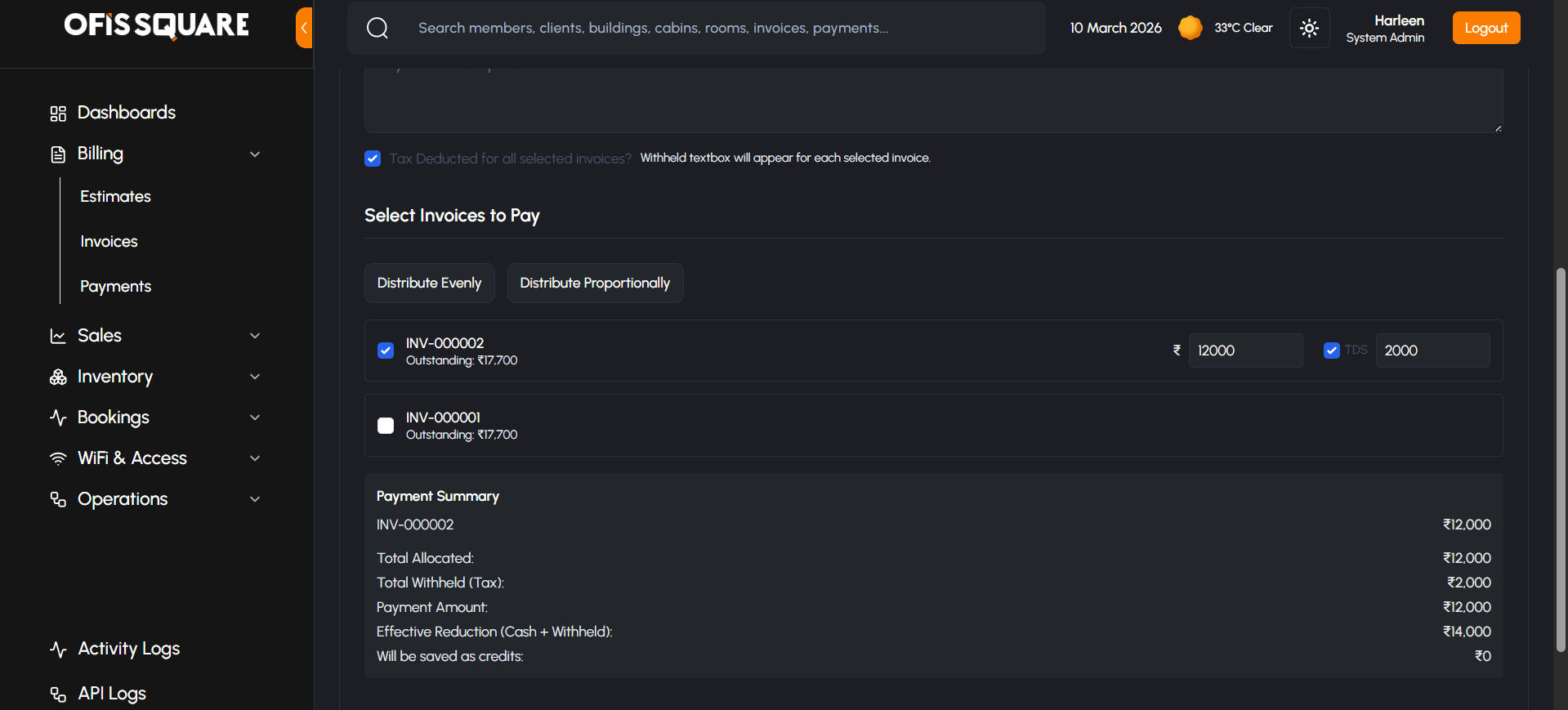
- Tax Withheld (TDS): Administrators can check the TDS toggle for any invoice. This allows them to enter the exact tax amount the client withheld (typically 2% or 10%).
- Effective Reduction: The invoice balance is reduced by the Sum of Cash + TDS, ensuring the client's ledger remains accurate even when they pay less than the face value of the invoice due to tax laws.
The "Unused Amount" Flow (Extra Credits)
The platform handles overpayments or advance payments through an automated credit engine:
- Excess Detection: If a client pays more than the total of their selected invoices (or pays without selecting any invoices), the system identifies this as an Excess Amount.
- Credit Creation: This surplus is automatically saved as Extra Credits (Unused Amount) on the Client's profile.
- Automatic Application:
- Manual Pulse: From the Payment screen, Admins can click Apply Full Credits on any outstanding invoice. This instantly consumes the client's unused balance to settle that bill.
- Zoho Sync: These credit applications are synchronized with Zoho Books as "Credit Note Applications," maintaining perfect parity between platform and accounting.
Building Infrastructure & Access Management
The Admin Panel provides centralized control over the physical and digital access layers of the workspace, integrating directly with hardware and network provisioning services.
1. Matrix Access Control (Physical Security)
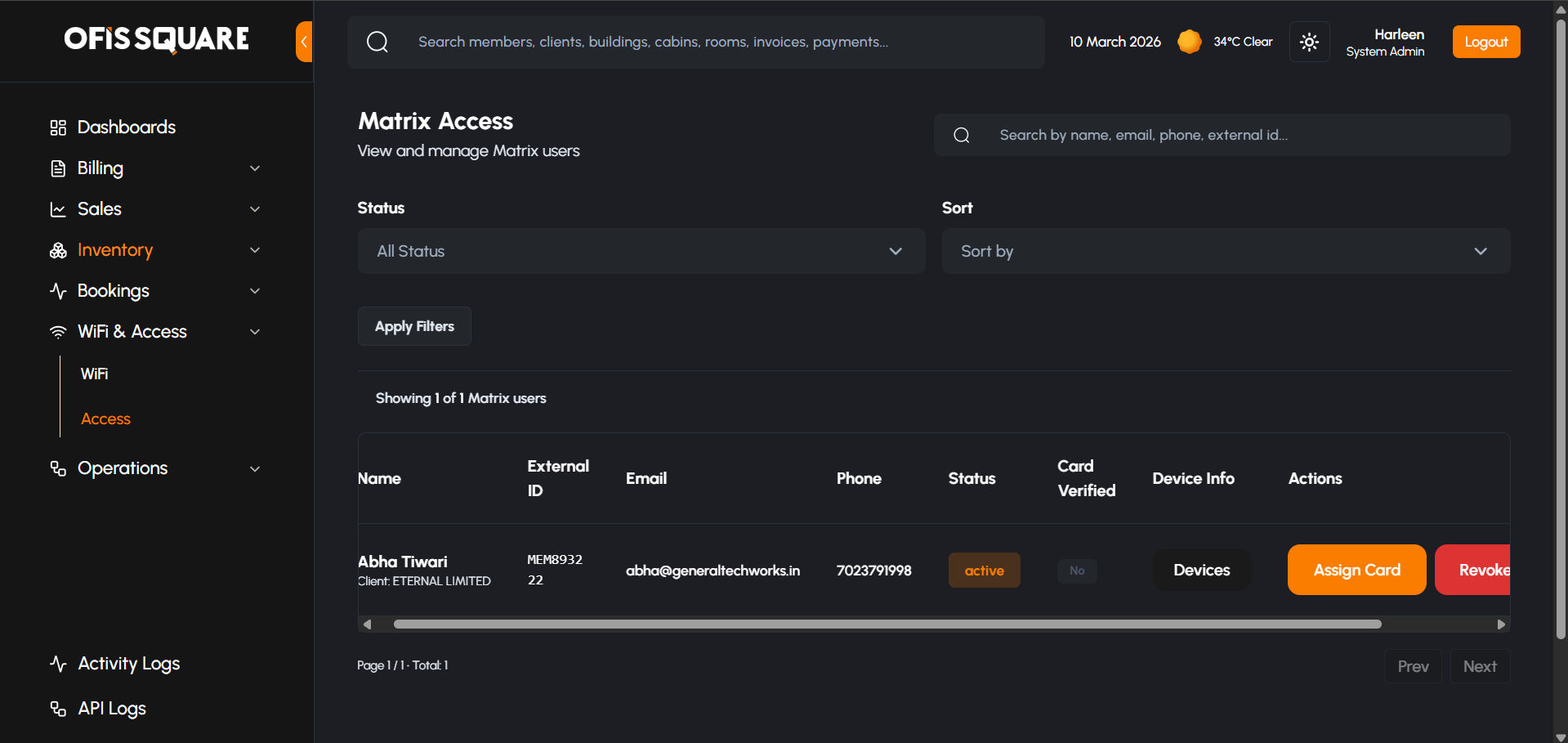
The Matrix Access module manages the physical entry permissions for all members across the building's secured zones (Cabins, Meeting Rooms, and Main Entrances).
- Matrix User Profile: Automatically linked to a Client and individual Member, tracking their external ID and verification status.
- Device Assignment: Administrators can manually assign a user to specific Matrix Devices (doors/turnstiles). This ensures the user's digital identity is pushed to the physical hardware.
- RFID Card Management:
- Assign Card: Link a physical RFID card to a user.
- Card Verification: Tracks whether the card credential has been successfully verified by the Matrix system (
isCardCredentialVerified).
- Revocation: A high-priority action that removes a user's access from a specific device or all devices instantly if a contract is terminated or a card is lost.
2. WiFi Management (Network Provisioning)
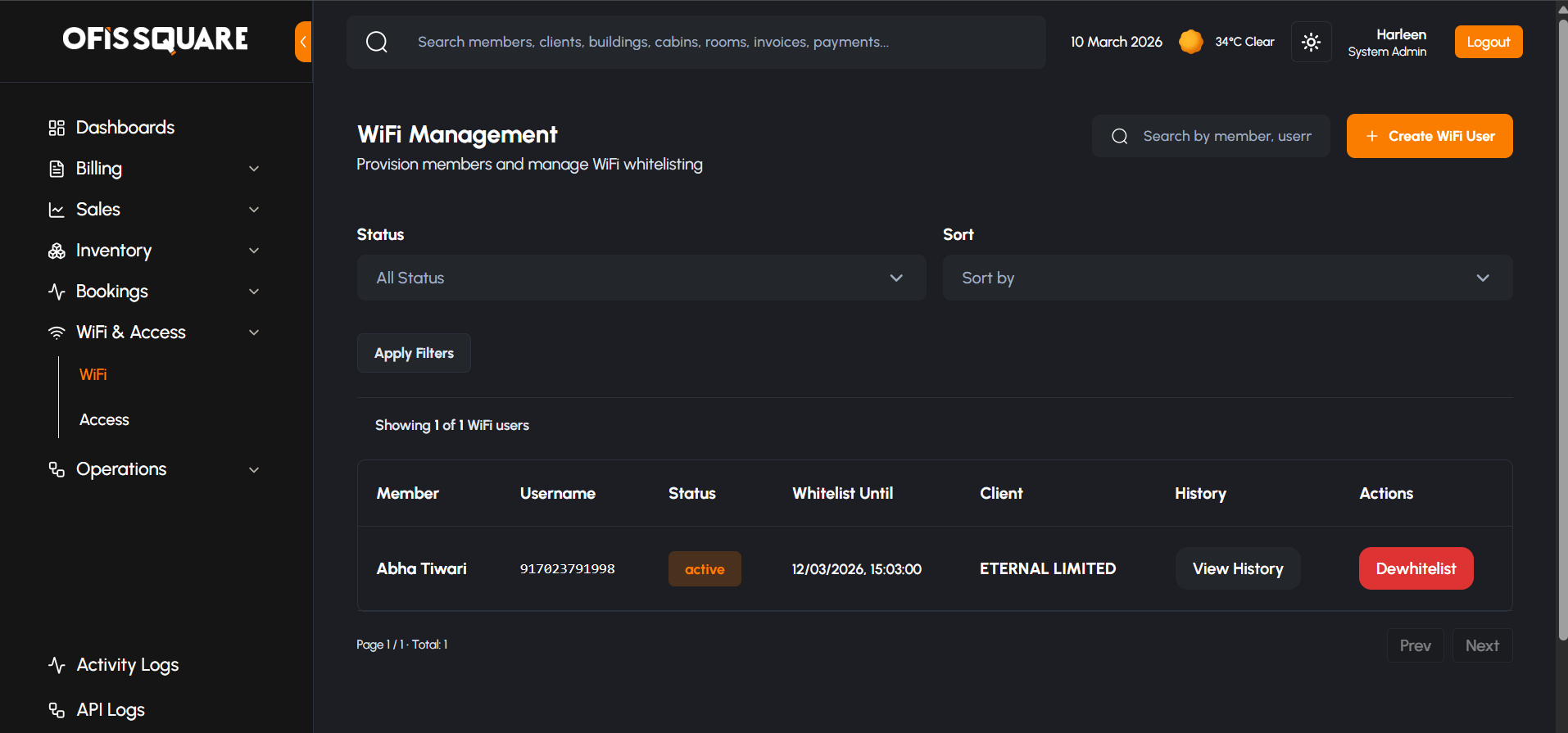
The WiFi Management module controls the digital provisioning of high-speed internet for members via the Bhaifi integration.
- WiFi User Creation: Admins can provision new WiFi credentials for active members, linking them to their respective contracts.
- Whitelisting (Access Control):
- Active Whitelist: Granting access for a specific duration. By default, this is synced to the contract's end date but can be manually overridden.
- Dewhitelisting: Manually suspending internet access, requiring a recorded reason for audit purposes.
- History & Sync Tracking:
- Whitelist History: A full audit trail of when access was granted, for how long, and by which administrator.
- Sync Status: Real-time tracking of the
lastSyncAttimestamp to ensure the platform and WiFi gateway are in perfect parity.
System Audit & API Logging
To maintain high security and operational transparency, the platform implements a dual-layer logging system that tracks both human interactions and automated service-to-service communications.
1. Activity Logs (User Audit)
The Activity Logs provides a chronological record of every administrative action taken within the platform. This is essential for accountability and troubleshooting configuration changes.
- Entity-Based Tracking: Actions are categorized by the target entity (e.g., Client, Invoice, Contract, or Parking).
- Core Operations: The system logs all CREATE, UPDATE, DELETE, and LOGIN events.
- Metadata Snapshots: For critical changes, such as parking modifications, the log captures a "Before & After" snapshot (Old Value vs. New Value), allowing admins to see exactly what was changed and by whom.
- Security Context: Every entry includes the user's name, role, IP address, and a timestamp for precise auditing.
.png)
2. API Call Logs (Integration Monitoring)
The API Call Logs is a technical diagnostic tool used to monitor the health of third-party integrations. It captures the raw data flowing between Ofis Square and external services like Zoho Books, Zoho Sign, Razorpay, and SMS Waale.
- Directional Audit: Tracks both Outgoing requests (initiated by the platform) and Incoming webhooks (sent by external services).
- Payload Visibility: Administrators can expand any log entry to view the raw Request Body and Response Body. This is used to debug synchronization failures or verify data accuracy.
- Performance Metrics: Logs record the Duration of each API call. Consistently high latency in these logs can indicate service degradation in external providers.
- Error Resolution: When an integration fails, the log captures the specific Status Code and Error Message returned by the external API, allowing for rapid troubleshooting without backend access.
.png)
User Management & Security Governance
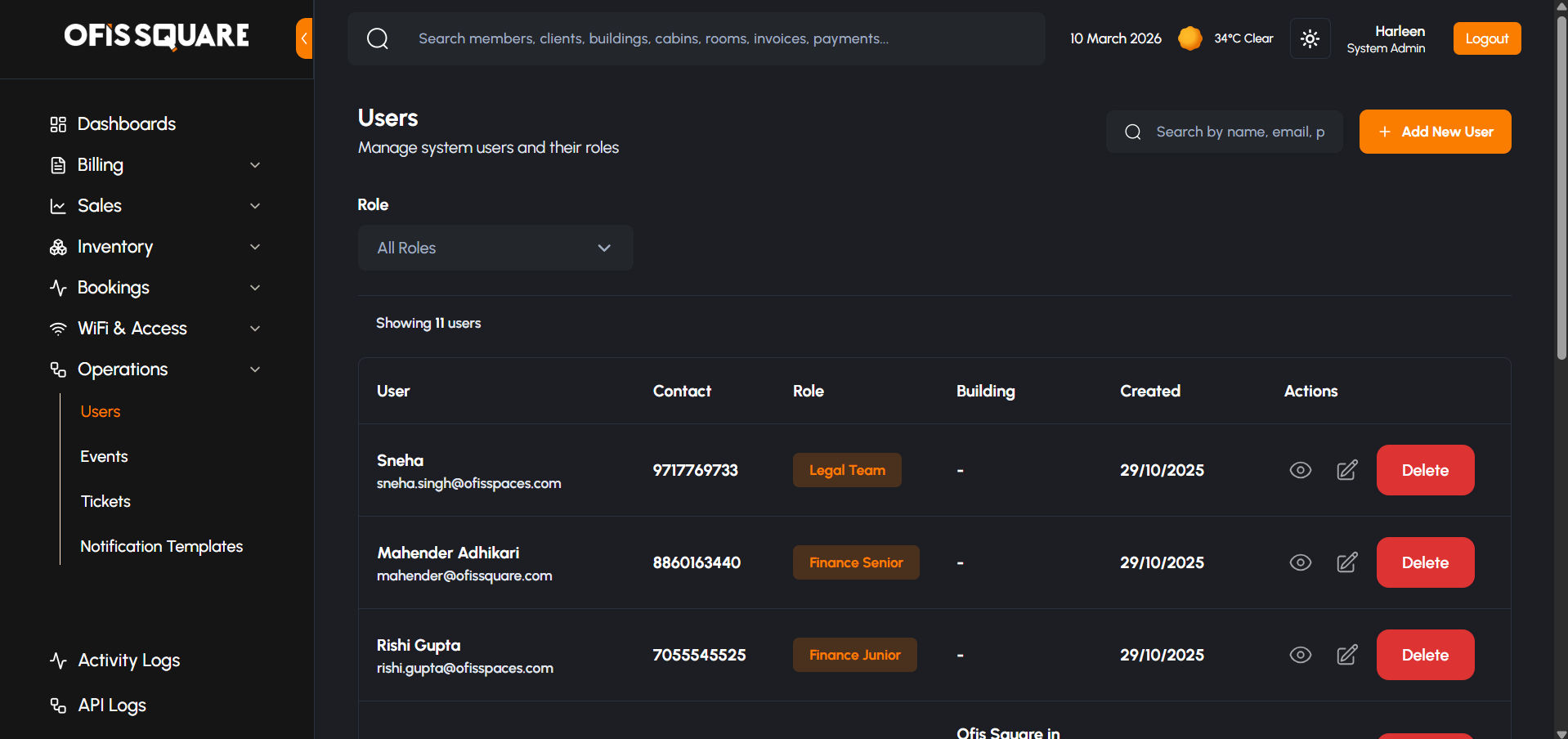
The platform employs a strict tiered-authorization model to protect administrative integrity. High-impact changes to the system's core governance roles are protected by a manual "M-of-N" style authorization flow involving the General Manager (GM).
1. The General Manager (GM) Authority
The General Manager Mail acts as the root of trust for the platform. This specific identity is the only authority capable of authorizing changes to the highest-level administrative roles.
2. OTP-Protected Administrative Actions
To prevent unauthorized account elevation or accidental deletions of core staff, the following actions trigger a mandatory SMS OTP Verification sent to the GM's registered mobile device:
- System Admin Creation: When a new user is created with the "System Admin" role, they are assigned a Pending Verification status. They cannot log in until the GM authorizes the creation.
- Account Elevation: Promoting any existing user to the "System Admin" role requires GM consent via OTP.
- System Admin Modifications: Any updates to existing System Admin profiles (name, email, phone, or password) are held until verified.
- Critical Deletions: Deleting the GM Account or any System Admin account requires a final OTP confirmation from the GM.
3. The 3-Step Verification Flow
- Initiation: A Superadmin attempts a protected action (e.g., "Create System Admin").
- Draft State: The platform creates the record in a pending state and automatically triggers an SMS containing a unique 6-digit OTP to the GM.
- Formal Authorization: The action is only committed to the database once the valid OTP is provided. Upon successful verification, the user's account is activated, or the requested update/deletion is finalized.
.png)
Recurring Invoices
The platform operates a series of critical background tasks to ensure financial accuracy, infrastructure security, and data hygiene. These are triggered daily or at fixed intervals via a master cron scheduler.
1. Monthly Billing Pipeline
The background billing engine triggers every day at 17:40 IST. It follows a strictly controlled 3-stage lifecycle based on building-level configurations:
Recurring Invoice Flow Logic
- Stage 1: Draft Generation (Draft Generation Date): On the configured date (usually 25th), the system automatically generates Pro-Forma Invoices (Estimates) for the upcoming month.
- Stage 2: Automated Dispatch (Pro-Forma Dispatch Date): On this date (usually 26th), all Pro-Formas marked as Approved Internal are automatically emailed to clients. This 24-hour gap allows the Finance Team to review and adjust drafts before they reach the client.
- Stage 3: Tax Conversion (Tax Invoice Conversion Date): On the first date of the actual billing month, the system converts all "Sent" Pro-Formas into official Tax Invoices, generating final invoice numbers and syncing them with Zoho Books.
Key Configuration Parameters
- Draft Generation Date: The specific date of the current month when drafts for the next month are born.
- Invoice Due Date: The date of the target month when payment is officially due (e.g., 7th of the billing month).
- Pro-Forma Dispatch Date: The date the system pushes approved pro-formas to the client.
- Tax Invoice Conversion Date: The date the pro-forma legally becomes a tax invoice.
2. Late Fee Management
The platform prevents revenue leakage through an automated two-step late fee lifecycle:
A. Daily Accrual (Daily Accrual Recording)
Triggered daily at 00:05 IST, the system scans all outstanding invoices:
- Eligibility: Invoices must be past their Due Date, have a positive balance, and belong to a building with an enabled Late Fee Policy.
- Grace Period: The system respects the configured Grace Period Days. Fees only begin accruing once the grace period is exceeded.
- Calculation: Fees are calculated based on the policy variables (Fixed Daily Rate or Percentage of Balance).
- Storage: Each day an invoice remains overdue, a unique "Pending" late fee record is created.
B. Monthly Consolidation (Monthly Consolidation)
Triggered on the Building's Draft Generation Date:
- Consolidation: All "Pending" late fees for a client are grouped into a single Consolidated Estimate.
- Line Items: To keep billing clean, the system summarizes fees per original invoice (e.g., "Accumulated Late Fees for Invoice #INV-100 (5 days)").
- Taxation: A standard 18% GST is applied to the late fee subtotal.
- Status Update: Once the estimate is generated, the underlying daily records are marked as "Billed" to prevent double-charging.
3. Operational & Revenue Protection Jobs
Beyond billing, several other tasks run continuously to protect the platform's efficiency:
| Operation | Frequency | Action Taken |
|---|---|---|
| Access Enforcement | Hourly | Automatically suspends building access (Matrix) for clients with overdue invoices and resumes it instantly upon payment. |
| Late Fee recording | 00:05 IST | Daily calculation and recording of late fee accruals as per the building's late fee policy. |
| Payment Reminders | 10:00 IST | Daily dispatch of automated payment reminders via Email/SMS for outstanding invoices. |
| Meeting Cleanup | Every 2 min | Auto-cancels payment-pending meeting bookings that have exceeded the building's timeout threshold (e.g., 10 minutes). |
| No-Show Updates | 01:00 IST | Marks visitors who never checked in as 'No-Show' for data cleanup. |
| Token Refresh | Every 10 min | Continuous handshake with Zoho Books and GST APIs to ensure uninterrupted synchronization. |